How to File GSTR 1 from Tally ERP 9 Release 6
GSTR 1 is a monthly return that should be filed by every registered dealer. It contains details of all outward supplies i.e. sales.
The due date for GSTR-1 is 10th of next month. But for the month of July the due date is 5th September 2017 and, for August it is 20th September 2017 .
In this article,we will explain you how to file GSTR 1 from Tally 9 ERP 6.
The process of filing the GSTR 1 from Tally ERP 9 on the GST portal can be divided into three steps :
Step 1 – Exporting the data of GSTR 1 from tally to excel file.
Step 2 – Converting the excel file to JSON file using GST offline tools available on GST portal.
Step 3 – Uploading the JSON file on GST portal .
Detailed Steps to file GSTR 1 using Tally ERP 9 Release 6
Step 1 : View the GSTR 1 report in Tally
First, view the GSTR 1 report generated by Tally.
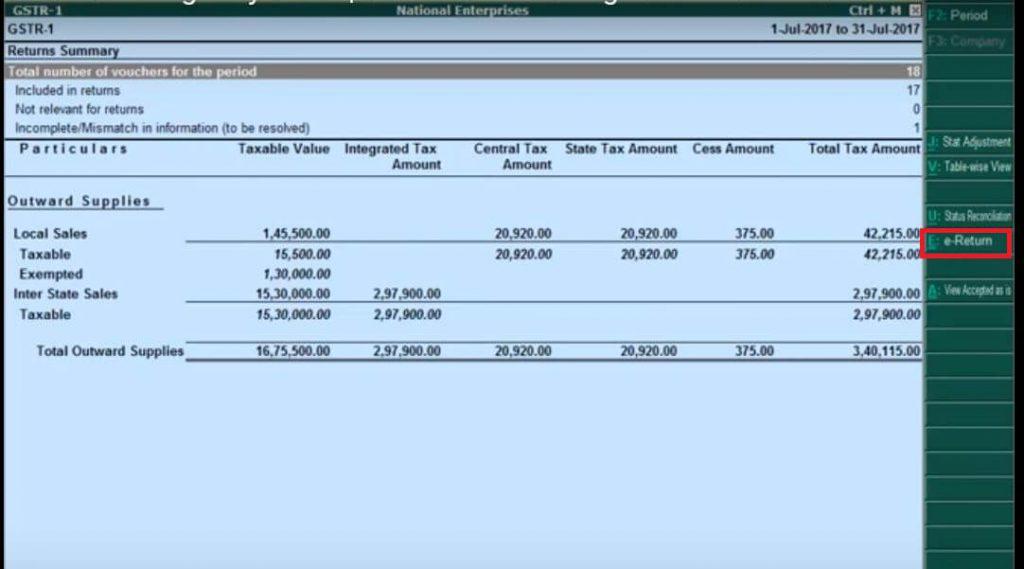
For this go to Display > Statutory reports > GST > GSTR 1.

ou can view the GSTR 1 report in the table wise format with the details captured under different table heads similar to the actual form.
Alternatively, you can also select Default View which provides the tax computation information for all the sales or outward supplies.
Step 2 : Exporting the GSTR 1 report to Excel file
You can export the GSTR 1 details in excel file.
But before exporting the GSTR 1, make sure that all the transactions are included in GSTR 1 report.

f any adjustments are required for instance advance receipts etc, press CTRL + J or click the Stat Adjustment button on the right side and pass the adjustment voucher entry so that it gets included in GSTR 1 report.
To export the return, click the e-return button on the GSTR 1 report.
Step 3 : Create JSON file of the excel file using GST offline tool
Extract and install the GST return offline tool available on the GST portal.
It will help you to create the JSON file from the excel generated from Tally.
Step 4 : Upload the JSON file on GST portal
Once you have created the JSON file, you need to upload this file.
For this login to the GST portal . Go to Services > Returns > Returns Dashboard. Now upload the JSON file prepared by you and submit the return.

Comments
Post a Comment